
The Pixel
field guide.
A batch should not need a manual. This is the short version: the first run, the tools that matter, and the details that keep a finished file finished.
Drop a file. Pick an outcome.
Pixel is a local-first workbench. Files are read and written on the device; the app does not upload your images. The free tools need no account.
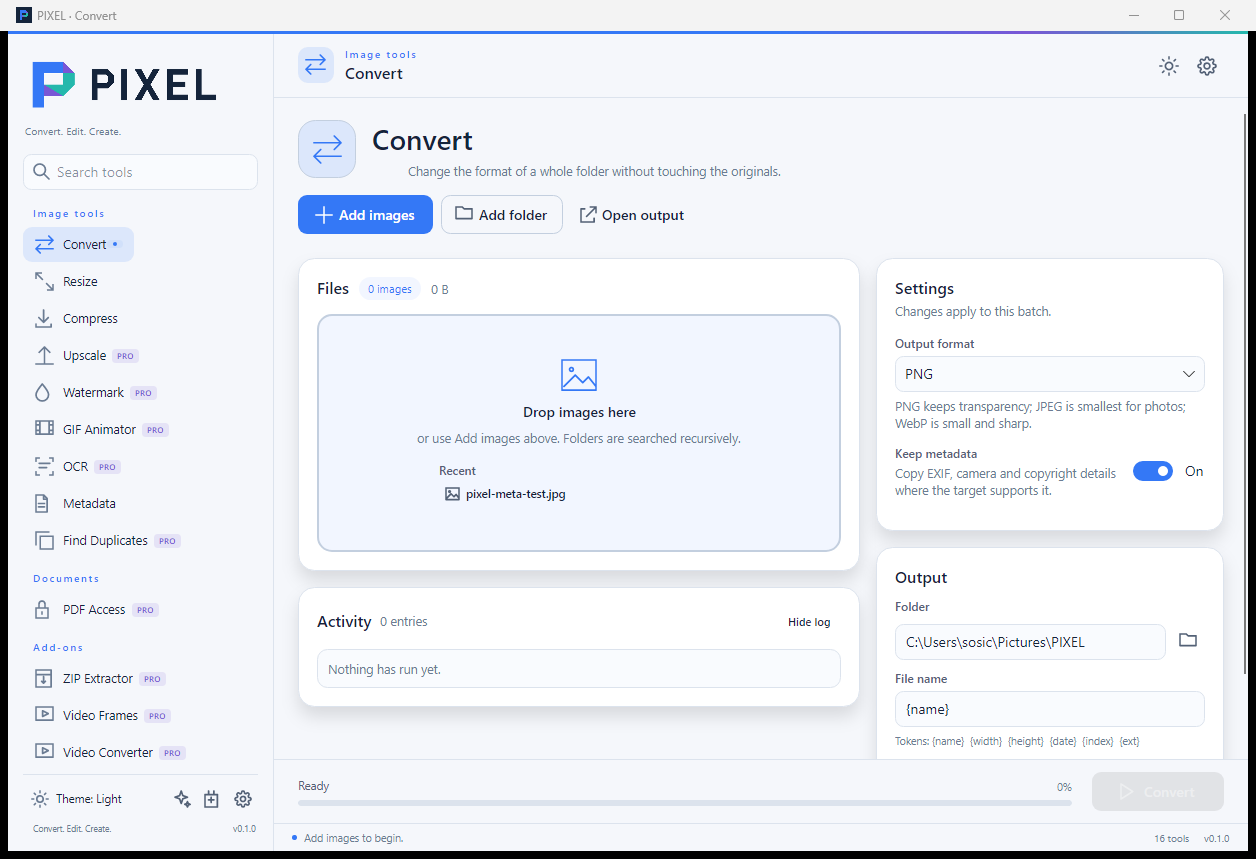
Add files or a folder
Choose the tool
Set the output
Pictures\Pixel on Windows and the app's output folder on Android.Run
The useful part is free.
Pixel Free
- Convert
- Resize
- Compress
- Metadata viewing
No account. No caps. No output watermark.
Pixel Pro
- Metadata editing and scrubbing
- Watermark, Upscale, GIF
- OCR, Duplicates, PDF Access
- Video tools and plugins
One-time purchase. Account-based. Up to three active devices.
Pro is tied to your Off the Rails account. Sign in with a one-time email code on the Pixel Pro screen; the app registers the device locally and caches the entitlement for offline use.
Most jobs are a format change.
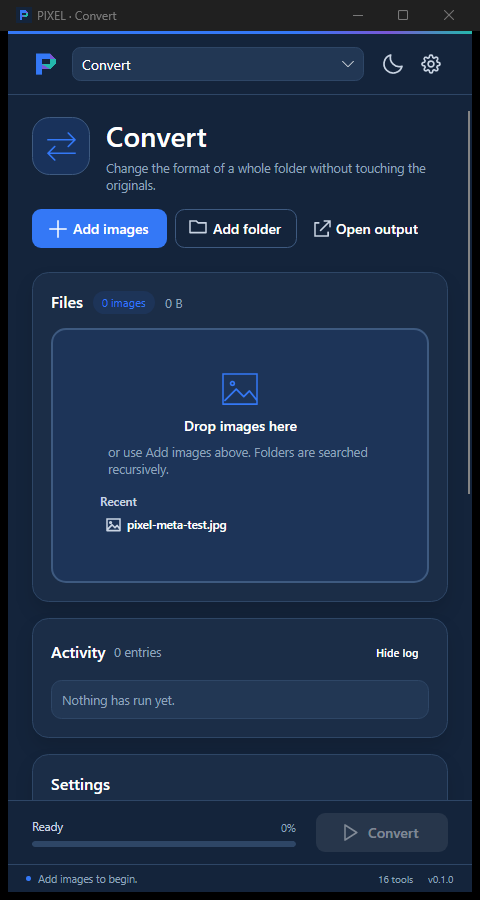
Add the files, choose the output format and start. Convert supports JPEG, PNG, WebP, BMP, GIF, TIFF, ICO and PDF. A batch can be combined into a single multi-page PDF.
Keep metadata
On by default when the target format supports it. Use Metadata if you want to inspect or clean it first.
Output names
Use tokens such as {name}, {index} or {date} to keep a batch organized.
Smaller, without the guesswork.
Resize supports fit, fill, stretch and percentage modes, with Lanczos, Mitchell, Bicubic, Bilinear and Nearest resampling. Compress lets you cap dimensions and quality while choosing whether to preserve metadata.
A safe resize
- 1. Choose Resize.
- 2. Pick Fit to preserve the whole image.
- 3. Enter the long edge or percentage.
- 4. Keep Never enlarge on for web exports.
A safe compress
- 1. Choose Compress.
- 2. Set a maximum width for the destination.
- 3. Use 80–90 quality for photos, higher for graphics.
- 4. Check the result size before replacing originals.
Look first. Then decide what stays.
Metadata viewing is free. Add an image and select it to see camera, location, timestamps, software and file details. The free view is read-only.
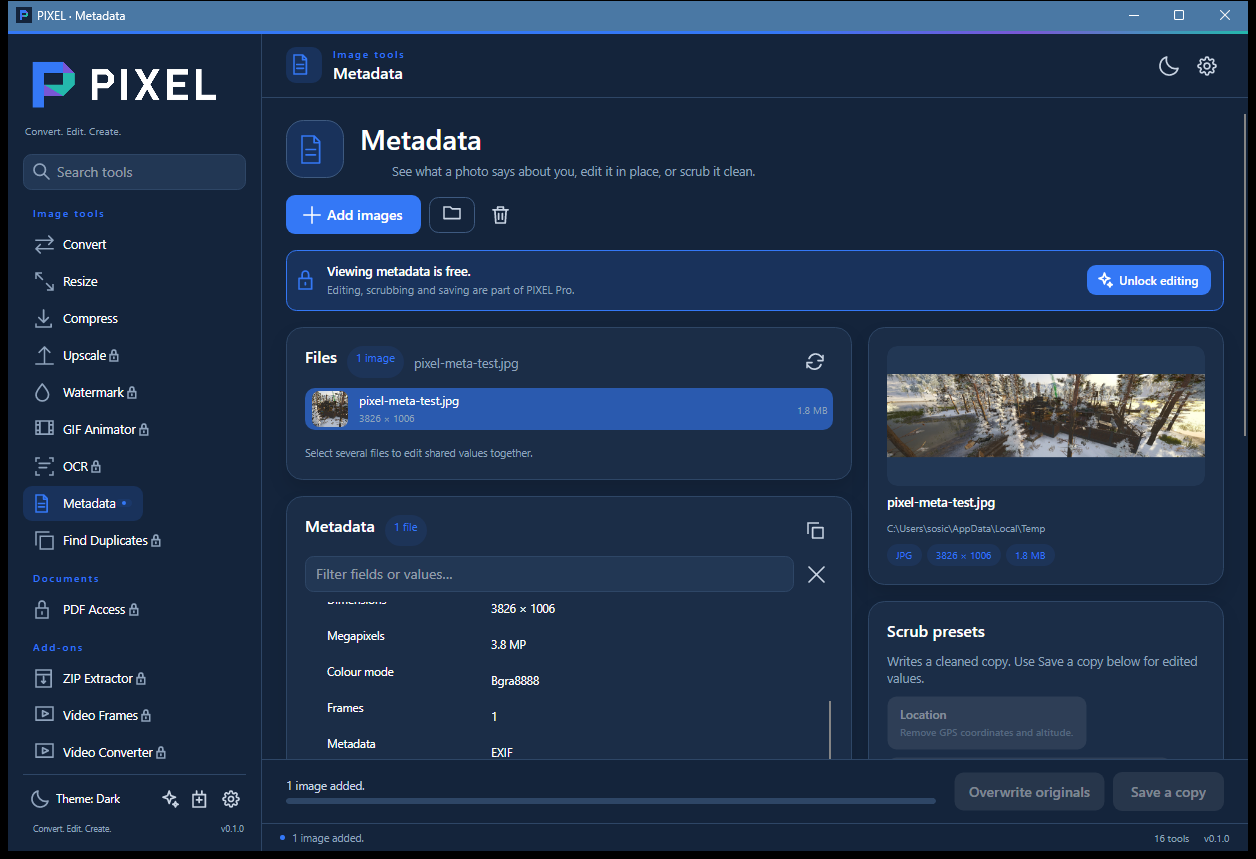
With Pro, edit a field directly, tick a row to remove it, or use a scrub preset: Location, Camera & lens, Timestamps, Author & software, or Everything. JPEG, PNG and WebP writes are lossless; the compressed pixel stream is not re-encoded.
Use Save a copy while testing. Use Overwrite originals only when you have a backup.
The picker is the permission.
Android does not expose a desktop-style file path. Pixel imports the files you choose into a private working cache, processes the batch, then copies the result into the folder you selected through the system picker.
Input
Use Add images or Add folder. No broad storage permission is requested.
Output
Choose a public folder in the Output card. Without a chosen folder, output stays in the app's private storage.
Recipes, not code.
A plugin is a folder with a plugin.json manifest. It describes inputs and a short chain of resize, watermark, convert or compress steps. The same recipe runs on Windows and Android, and it cannot read files you did not add to the run.
The seed examples live in %APPDATA%\Pixel\Plugins on Windows (or the app's private folder on Android). The plugin runner is a Pixel Pro feature.
One account. Three devices.
Pixel Pro uses an Off the Rails account. On the PIXEL Pro screen, enter your email, request a one-time code, then verify it. Pixel registers this device and caches a signed entitlement for offline use.
Sign in with email
Activate this device
Manage old devices
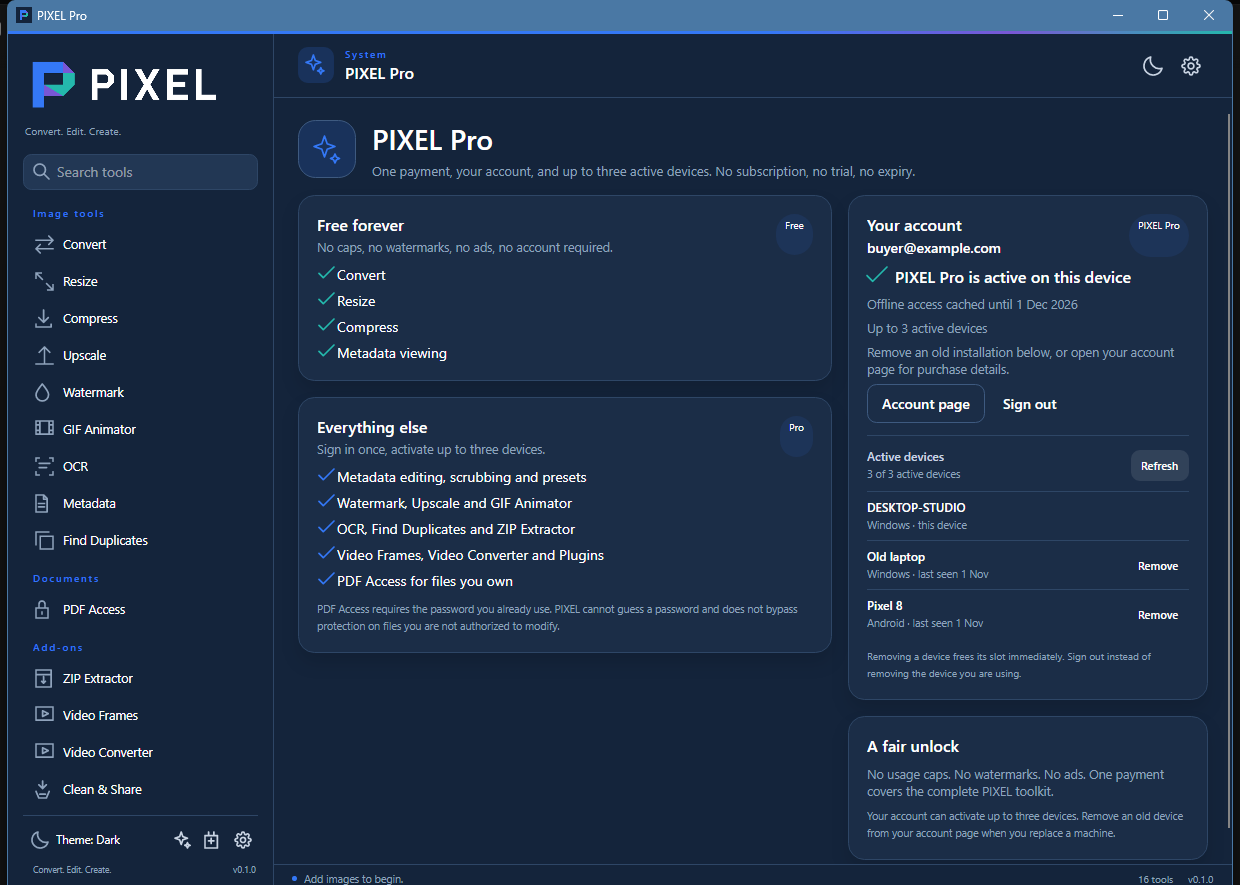
The entitlement is valid for offline use for 30 days and refreshes when the app can reach the account service. If you are offline past that window, the free tools still work.
When a batch refuses.
A file is missing from the queue.+
Pixel only accepts formats it can decode. Check the extension and try opening the file in another viewer first.
The output is not where I expected.+
Open the Output card and check the folder and file-name template. On Android, output follows the public folder you picked.
Metadata editing is disabled.+
Viewing is free; editing and scrubbing require Pixel Pro on an activated device. Some TIFF metadata is read-only by design.
OCR or video tools are unavailable.+
OCR needs Tesseract; video tools need ffmpeg. The page shows what is missing instead of failing silently. Set TESSERACT_PATH or FFMPEG_PATH if the tool is installed elsewhere.
Pro activation says the account service is not connected.+
That build has not been pointed at the live account API yet. The free tools still work; install a release build or use the account page once it is available.
Ready to run a batch?
Download the free build and start with the free tools.
Something still unclear?
Tell us which step lost you. We will improve the guide rather than make you guess.